
Solutions


They have just said yes.
That confirmation page is not just a receipt. It is your best opportunity to make sure that yes turns into attendance, engagement, and action.
Yet many confirmation pages end with a simple message: “You’re all set.” And nothing more.
If you are not including Add to Calendar on every confirmation page, you are leaving attendance and revenue to chance, which is a silly thing to do at such a crucial point in the attendee journey.
The Confirmation Page Is a Commitment Moment
The moment after someone submits a form is a psychological high point. They have taken action. They are motivated. They expect next steps.
So it makes sense that this is when they are most likely to save the date, block time on their calendar, plan to attend, and even share the event with others. The intent is fresh. The commitment is real.
If you wait to send an Add to Calendar link in a follow up email, you are already introducing friction. Emails get buried. Notifications are turned off. Inbox filters get in the way. Even highly engaged registrants can miss a follow up message.
Your confirmation page, on the other hand, is guaranteed visibility: every registrant sees it. That makes it one of the most valuable conversion assets in your entire funnel.
Add to Calendar Options Reduce No Shows and Increase Attendance Rates
No shows are rarely about lack of interest. They are about forgetfulness, scheduling conflicts, or lost details.
When someone adds your event directly to their calendar, they are not just saving information. They are blocking time. The event becomes part of their daily schedule, sitting alongside meetings, deadlines, and priorities.
Automatic reminders are triggered based on their calendar settings. Event details such as the title, time, location, and joining link remain easily accessible. Time zone information is handled correctly, which is especially critical for global audiences. This is more than a mere convenience: it’s behavioral reinforcement.
A hold on the calendar transforms someone’s intent into a scheduled commitment. For webinars and demos, this can significantly improve attendance rates. For in person events, it increases the likelihood that your event remains a priority when schedules get crowded as the day gets closer.
Your Calendar Becomes Your Owned Channel
When someone adds your event to their calendar, you gain something more powerful than an email open: you gain a presence inside their daily workflow.
Calendar events show up on desktop and mobile devices. They send automatic reminders. They remain visible days or even weeks in advance. Unlike social posts or marketing emails, they are not competing in a constantly refreshing feed or inbox.
If you think of email as owned media, your audience’s calendar is even more direct. It is where decisions about time actually happen. Securing a spot on that calendar means your event is not just remembered, it is scheduled.
Confirmation Pages Are Conversion Assets
Most teams treat confirmation pages as an afterthought, but they are actually high intent pages. Every visitor on that page has just completed a desired action, and now it’s time to solidify things in this final step.
Instead of stopping at “Thank you for registering,” consider what else can happen at this moment. You can encourage attendees to add the event to their calendar immediately. You can prompt them to share the event with colleagues. You can offer related resources, event materials, or even a follow up action such as booking a demo while they wait for the event date.
But an Add to Calendar button should be the primary action on that page. It reinforces the original conversion and increases the likelihood of the outcome you care about, whether that is attendance, engagement, or pipeline.
Best Practices for Adding Add to Calendar to Confirmation Pages
Adding an Add to Calendar button to your confirmation page is simple, but how you present it really matters.
First, make it prominent. This should not be a small text link buried at the bottom of the page. It should be a clear, visible button placed near the top of the confirmation content, ideally immediately after the success message.
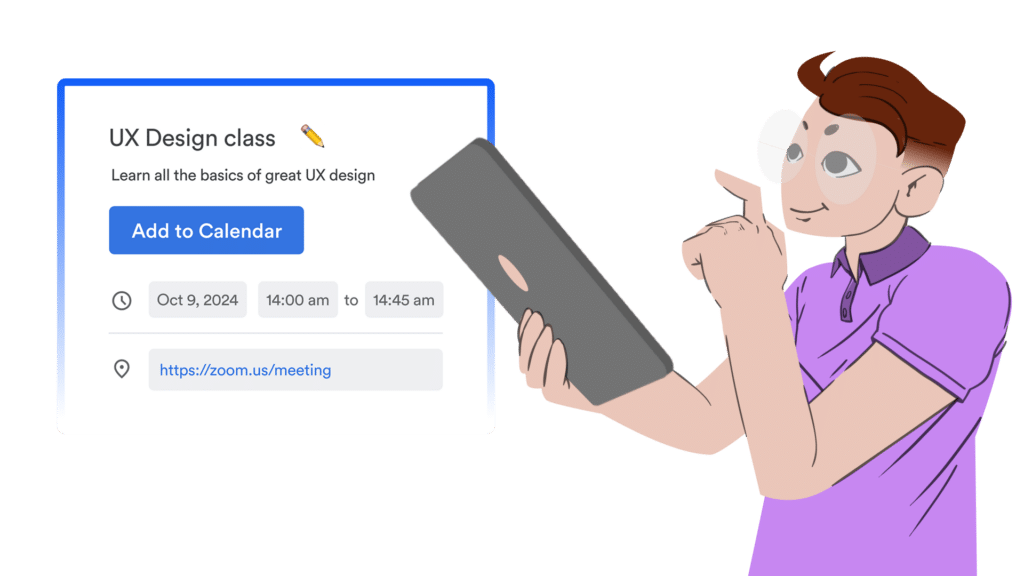
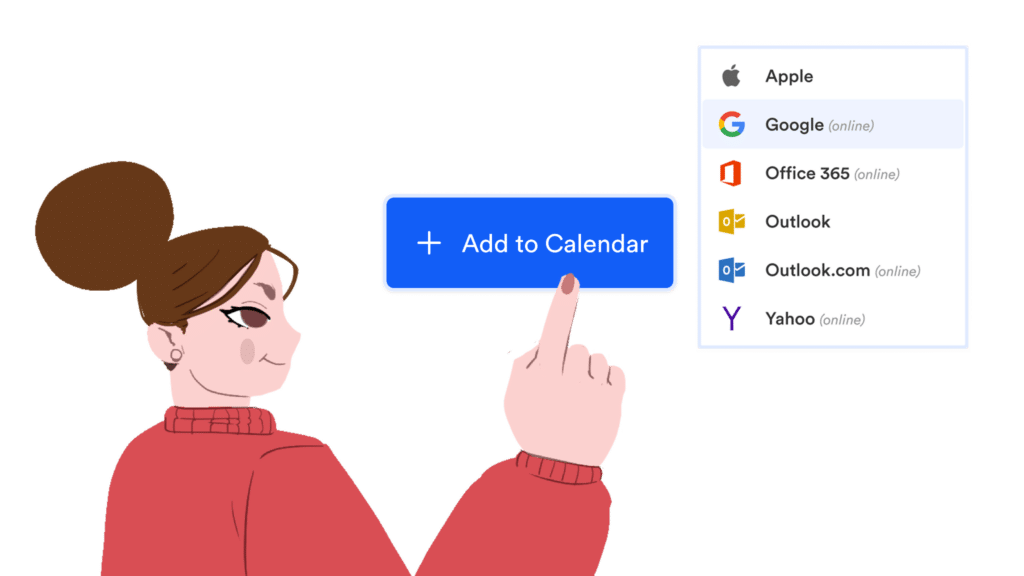
Second, support all major calendar platforms. Your audience may use Google Calendar, Outlook, Apple Calendar, or another provider. Offering universal compatibility ensures that every registrant can add your event with one click.
Third, include all relevant event details in the calendar entry. This means accurate date and time, correct time zone handling, location or virtual link, and any key instructions. The calendar event should be a complete reference point so attendees do not need to search their inbox for details later.
Finally, make it seamless. The Add to Calendar experience should require minimal effort, with one click to the correct platform, and the event is saved.
With AddEvent, you can generate customizable Add to Calendar buttons and links that work across major calendar providers, handle time zones automatically, and ensure your event details are consistent everywhere they appear.
The result is simple. Higher attendance. Fewer no shows. Stronger engagement.
If you are already investing in driving registrations, do not stop at the form submission. Make Add to Calendar a standard part of every confirmation page and turn intent into attendance. Sign up for a free account to get started today.
FAQs
Where should I place the Add to Calendar button on my confirmation page?
The Add to Calendar button should appear immediately after the confirmation or success message, where attention is highest. It should be visually prominent and clearly labeled so registrants understand it is the next step. Avoid burying it in small text or placing it below secondary content. The goal is to make saving the event effortless and obvious.
Does Add to Calendar work for both virtual and in person events?
Yes. Add to Calendar works for webinars, demos, virtual conferences, in person events, and even gated content releases. For virtual events, it ensures the joining link is saved directly in the calendar entry. For in person events, it reinforces the date, time, and location while triggering automatic reminders that help reduce no shows.
Do I still need reminder emails if attendees add the event to their calendar?
Yes. Calendar holds and reminder emails work best together. When someone adds an event to their calendar, they receive automatic reminders based on their calendar settings. Reminder emails provide additional touchpoints, updates, and engagement opportunities. Combining both ensures your event stays top of mind across multiple channels.
Too many companies treat their event landing page like a blog feed. They publish a new post for every webinar, product launch, or virtual summit. Over time, that page becomes cluttered, outdated, and difficult to navigate.
If you are investing in marketing events, your events page needs to do more than document the before and after of what happened. It needs to drive registrations, increase attendance, and build long-term engagement with your community, no matter the size.
The most effective way to do that is with an interactive, embeddable calendar, not a list of blog posts.
What Is an Event Landing Page Supposed to Do?
An event landing page has one primary job: convert interest into commitment.
When someone visits your upcoming events page, they are typically looking for:
- What is happening next
- When it is happening
- How to register or attend
- How to stay informed about future events
A blog-style layout might be optimized for reading, but an embeddable subscription calendar is optimized for action.
An embeddable calendar or embeddable events list organizes your marketing events chronologically, clearly separates upcoming from past events, and makes it easy for users to commit with add to calendar and follow calendar options.
That shift in structure changes the role of your events page from passive content hub to active conversion channel.
The Problem With Blog-Style Event Pages
At first glance, publishing individual blog posts for each event seems logical. It is simple, familiar, and aligns with existing content workflows. But over time, this approach creates friction.
Blog-style event pages often:
- Mix past and upcoming events together
- Require scrolling through outdated content
- Lack filtering by event type, region, or audience
- Offer no easy way to subscribe to all future events
This forces visitors to manually scan headlines and dates, which quickly increases drop-off.
More importantly, blog posts treat each event as a one-time interaction. There is no built-in mechanism to keep that visitor connected to your future marketing events. A subscription calendar changes that dynamic completely.
Why an Embeddable Subscription Calendar Drives Higher Engagement
An embeddable calendar turns your event landing page into a live, continuously updated hub.
Instead of publishing dozens of disconnected blog posts, you maintain one dynamic calendar that automatically updates across your website.
With a calendar widget in place, your audience can:
- View all upcoming events in one structured layout
- Filter events by category, product, or audience
- Add individual events to their personal calendar
- Subscribe to your full event schedule
When someone subscribes to your subscription calendar, your events are delivered directly into their Google, Outlook, Apple, or other calendar platform. This means built–in reminders, persistent visibility, and higher attendance rates.
This is the core of calendar marketing. Instead of relying only on email reminders and social posts, your events become part of your audience’s daily planning tools.
An Embeddable Events List Improves Usability and SEO
A well-structured embeddable events list also strengthens your event landing page from a search perspective.
Unlike static blog posts that age quickly, a dynamic calendar keeps your page fresh with clearly formatted event titles, consistent date structures, regularly updated content, and organized upcoming and past sections.
Search engines prioritize pages that remain relevant and updated. A centralized events hub signals that your content is current and active.
Rather than creating dozens of thin event posts that compete with each other, you build authority around a single, comprehensive event landing page.
This supports SEO for terms like event landing page, marketing events, calendar widget, and subscription calendar.
One Source of Truth for All Marketing Events
Managing marketing events across multiple blog posts and landing pages increases operational complexity. Dates change. Speakers are added. Links are updated.
With blog-style publishing, every change requires manual updates in multiple locations.
An embeddable calendar becomes your single source of truth.
When you update an event in your calendar system, it automatically updates everywhere the calendar widget or embeddable events list appears, as well as on your subscribers’ personal calendars.
This reduces errors, saves time, and ensures your audience always sees accurate information.
Designing an Events Page That Matches User Behavior
People do not manage their lives through blog feeds. They manage their lives through calendars.
Your audience already relies on Google Calendar, Outlook, Apple Calendar, and other tools to organize their time. When your event landing page mirrors that experience, it feels intuitive.
An interactive calendar shows events in chronological order which makes dates immediately visible, enables one-click add to calendar functionality, and encourages future-participation with followable calendars.
That alignment between your website and user behavior lowers friction and increases commitment.
Instead of asking visitors to remember your event, you give them a seamless way to save it.
How to Transition From Blog Posts to an Interactive Calendar
If your current events page is built like a blog, you do not need to start from scratch. You need to restructure.
Start by:
- Implementing an embeddable calendar or embeddable events list on your main event landing page by using a platform like AddEvent to get started.
- Be sure to include add to calendar links and buttons on every event
- Build out a subscription calendar option for ongoing engagement
- Then, market and share your calendar as the central hub for all marketing events
You can still publish supporting blog content when needed. But your primary events page should function as a structured calendar experience. That is what drives sustained engagement.
From Event Promotion to Calendar Marketing
Publishing blog posts for each event is a promotion tactic. Building an interactive events hub is a channel strategy. When your event landing page is powered by an embeddable calendar and subscription calendar, you shift from one-time promotion to ongoing presence.
You are no longer asking your audience to check back. You are meeting them where they already plan their time. That is the power of calendar marketing.
FAQs
What is the difference between an embeddable calendar and an embeddable events list?
An embeddable calendar typically displays events in a calendar grid or agenda view, showing dates visually. An embeddable events list presents events in a structured list format, often chronological. Both allow you to show upcoming marketing events on your event landing page and can include Add to Calendar and subscription functionality.
What is a subscription calendar?
A subscription calendar allows users to subscribe to your full event schedule. When you add or update events, those changes automatically appear in the subscriber’s personal calendar. This creates ongoing engagement without requiring manual updates from the user.
Will replacing blog posts with a calendar hurt SEO?
When implemented correctly, an interactive event landing page can strengthen SEO. A centralized, regularly updated events hub improves structure, keeps content fresh, and avoids fragmenting authority across dozens of thin event posts.
Can I still create individual landing pages for large events?
Yes. For major campaigns, conferences, or product launches, you can create dedicated landing pages. Your embeddable calendar should link to those pages while still serving as the central hub for all marketing events.
How does a calendar widget increase event attendance?
A calendar widget reduces friction. Users can instantly see dates, add events to their calendar, or subscribe to your schedule. Because events appear inside their personal calendar with built-in reminders, attendance rates typically increase compared to relying solely on email or blog promotion.
Proving ROI is one of the hardest parts of event marketing, especially when you are using Add to Calendar tools, calendar marketing campaigns, and RSVPs to drive attendance. You can see registrations coming in, but tying those registrations back to specific channels, campaigns, or placements is often fuzzy.
That is where UTMs come in.
When properly used on AddEvent’s event landing pages, and in event and calendar descriptions, UTMs let you track exactly where your event registrations originate, so you can confidently say which efforts are working and which ones are not.
This guide walks through what UTMs are, how they work with AddEvent, and practical examples you can apply to your upcoming events immediately.
What are UTMs, and Why Do They Matter?
UTMs, short for Urchin Tracking Modules, are parameters you add to a URL. They pass extra information into your analytics tool, such as Google Analytics, so you can identify the source of traffic. If you’ve ever clicked a link on social media and noticed extra text in the URL that mentions Twitter or Facebook, that extra info is a UTM code doing its job.
UTM parameters define the specific details a UTM code can track. Each parameter captures a different piece of information about where a click came from and how it fits into your overall marketing strategy.
Here’s an example UTM code, followed by a breakdown of each parameter and what it tells you.
Everything that appears after the question mark (?) is part of the UTM code. Each parameter is separated by an ampersand (&), which tells analytics tools to read them as individual data points.
The Five Main UTM Parameters
While your UTM may vary depending on how much (or how little) information you need to track, here are the main parameters you’ll find in UTMs:
Source
Identifies where the traffic originated, such as a social media platform, search engine, newsletter, or paid ad.
Example: utm_source=addevent
Medium
Shows the type of channel driving the traffic, like email, organic social, paid social, or pay-per-click (PPC).
Example: utm_medium=event_landing_page
Campaign
Tracks the performance of a specific campaign. In GA4, this parameter is expressed as utm_id=[campaign] and is required for GA4 data importing.
Example: utm_campaign=monthly_webinar
Content
Differentiates between multiple pieces of content within the same campaign. This is especially useful for emails or landing pages with more than one CTA, since it helps identify which content performs best.
Example: utm_content=ticketing_page
Term
Captures the keyword driving traffic and is most commonly used for PPC campaigns to evaluate keyword performance and optimize bidding strategies.
Example: utm_term=webinar
When someone clicks that link and registers for your event, your analytics platform records exactly where that person came from.
For event marketers, UTMs can start to answer questions like:
- Which channels drive the most registrations?
- Which partner promotions actually convert?
- Which placements are worth investing in again?
Where AddEvent Fits into the Picture
AddEvent does not replace UTMs. Instead, it amplifies their value.
Every time you share an Add to Calendar link or button, RSVP event page, or Subscription Calendar, it ultimately sends users to your event or calendar page, ticketing page, or registration form, helping bridge the gap between calendar marketing efforts and actual registrations. By attaching UTMs to those destination URLs, you keep attribution intact while still delivering a seamless calendar experience.
In short, AddEvent helps people remember your event. UTMs help you measure how they found it.
Example: Selling Tickets From an Event Description
Imagine you are promoting a live webinar or in-person event and using Add to Calendar links as part of your calendar marketing strategy to increase registrations. You share the event across multiple channels, including:
- Your website
- Email newsletters
- Social media posts
- Partner blogs
- Paid advertising
Inside the event description, you include a link to buy tickets or register.
Instead of using the same generic registration link everywhere, you create unique UTM-tagged links for each placement.
For example:
Website event page:
?utm_source=website&utm_medium=event_page&utm_campaign=webinar_q2
Email campaign:
?utm_source=email&utm_medium=newsletter&utm_campaign=webinar_q2
AddEvent landing page:
?utm_source=addevent&utm_medium=event_landing_page&utm_campaign=webinar_q2
Each of these links points to the same registration page, but the UTMs tell you exactly where each registration originated. When someone clicks Add to Calendar and later registers through that link, your analytics still capture the original source.
Hospitality Example: Tracking Upsells Beyond the Initial Booking
UTMs are not just useful for measuring initial registrations or ticket sales. In hospitality, they are especially powerful for tracking upsell opportunities that happen after a guest has already committed.
Imagine a hotel promoting an on-site event, such as a wine tasting, live music night, or seasonal dining experience. A guest books a room, receives a confirmation email, and then adds the event to their calendar using an AddEvent Add to Calendar link.
Inside the calendar event description, the hotel includes links to relevant upsells, such as:
- Booking a spa appointment
- Reserving a table at the hotel restaurant
- Purchasing event tickets or VIP upgrades
Each of these links uses UTMs to track the source and context of the click.
From the guest’s perspective, nothing feels different. They add the event to their calendar, receive reminders, and click when it is convenient. From the marketing and revenue team’s perspective, every upsell action is now measurable.
Using UTMs with AddEvent Add to Calendar Links
Here is how to set this up with AddEvent:
Start by defining the channels, campaigns, or placements you want visibility into. Keep naming consistent so reports are easy to read later.
Then, create your UTM-tagged URLs. Use your preferred UTM builder to generate links for each channel. Make sure each one points to the correct registration or ticketing page.
Add the UTM link to your event description or location section. When creating your AddEvent event, use the UTM-tagged URL as the destination.
Share each AddEvent link in its intended channel. Avoid reusing links across multiple sources if attribution matters.
And the most important part: measure to see what’s working. In your Google Analytics platform, you can filter by campaign, source, or medium to see which UTM-powered placements drove registrations.
What ROI Looks Like in Real Life
With tracking in place, ROI becomes much easier to demonstrate for your add to calendar strategy, calendar marketing campaigns, and overall RSVP performance.
You can start to clearly show:
- Which owned channels drove the most engagement
- How calendar descriptions and links influenced downstream behavior
- Which campaigns resulted in registrations and purchases
Instead of saying, “This event performed well,” you can now say, “The links we added with UTMs in the calendar and event descriptions drove 20% of total registrations.”
That is the difference between assumptions and proof.
Other Best Practices to Keep in Mind
- Keep UTM naming consistent across campaigns
- Avoid using too many parameters if you do not plan to analyze them
- Document your UTM structure so your team stays aligned see sure your registration platform captures UTM data correctly
Final thoughts
Events are powerful, but only if you can measure their impact.
By combining UTMs with AddEvent’s event and calendar tools, you get clear, reliable attribution across add to calendar usage, calendar marketing efforts, and RSVPs, without sacrificing the user experience.
Your audience remembers your event, and you get the data you need to prove ROI.
If you want help setting this up or improving your event attribution, AddEvent makes it easy to start tracking what really works.
Ready to prove the ROI of your events?
With AddEvent, you can create Add to Calendar links and RSVP events that work seamlessly with your existing analytics setup, so every campaign, channel, and promotion is measurable. Start using AddEvent to turn more event interest into attendance, and turn your data into clear ROI.
FAQs
Should I use all five UTM parameters for every event?
Not necessarily. Use only the parameters you plan to analyze. For most event marketers, source, medium, and campaign are enough. Content and term are helpful when you need deeper insight into CTAs, placements, or paid search keywords.
Can UTMs be used for upsells and post registration actions?
Yes. UTMs are especially effective for tracking upsells, upgrades, and secondary actions that happen after someone has already registered or booked. Links inside calendar event descriptions are a great place to measure this downstream behavior.
What is the most common mistake when using UTMs with events?
The most common mistake is inconsistency. Using different naming conventions across campaigns makes reporting harder and less reliable. Document your UTM structure and ensure everyone on your team follows the same format.
It’s getting people to actually show up.
Most marketing teams focus on registrations, signups, and clicks. But attendance is driven by something much simpler:
People have to remember.
That’s why Add to Calendar buttons and links consistently convert better than .ics files. They don’t just help people save the date. They build an automatic reminder system directly into someone’s day.
Here’s why that matters, and why .ics downloads often fall short.
Attendance is a memory problem, not a marketing problem
People don’t miss events because they don’t care. They miss events because life gets busy.
Your audience is juggling so many different things: meetings, deadlines, family obligations, and a world of constant content competing for their limited attention spans.
So the real question becomes:
How do you shift from “hope they remember” to “make it nearly impossible to forget”?
That’s exactly what happens when someone saves an event to their calendar.
Calendar saves work because external memory wins
A calendar is not just a scheduling tool. It’s a form of external memory.
When someone adds your event to their calendar, they’re doing something powerful: they’re transferring responsibility from their brain to a system they trust.
Instead of thinking:
“I’ll remember this.”
They’re saying:
“My calendar will remind me.”
That single shift reduces mental effort and removes friction between intent and action. It’s also why calendar saves lead to higher attendance, stronger follow-through, and better conversion rates.
Why Add to Calendar links outperform .ics files
Both options technically do the same thing in that they help someone add an event to their calendar. But the experience feels completely different…and that difference impacts conversion.
Add to Calendar links feel instant
Add to Calendar links are fast and familiar:
Click the link → choose a calendar platform → hit save.
That’s it.
On the other hand, downloading an .ics file introduces hesitation:
Where did the file download? Do I open it now or later? Is it safe? Which calendar did it go to? Did it actually work? Wait, what am I supposed to do with this thing again?
And every extra step lowers completion rates, which means reduced attendance rates, too.
.ics files create uncertainty
Even when an .ics file is legitimate, it still triggers a common reaction. People don’t love downloading files. Especially on mobile, and who isn’t usually on their phone these days?
A “Save to Google Calendar” or “Save to Outlook” option feels clear and intentional. “Download .ics” feels technical and unfamiliar. Links match what users already expect, so they’re more likely to follow through.
People want control before saving
When someone clicks an Add to Calendar link, they can usually preview the details first:
- date and time
- time zone
- location or video link
- notes and description
That preview builds confidence.
An .ics file often feels like a blind import, which makes users more likely to abandon the process.
Calendar saves create reminders automatically
This is the biggest difference.
A calendar event doesn’t just store information. It triggers reminders.
Depending on someone’s settings, they may get:
- An alert 30 minutes before
- A second reminder 10 minutes before
- A desktop pop-up
- A mobile push notification
- A visible “up next” reminder throughout the day
In other words, one click creates repeated attention. That’s why event-adds drive attendance.
The real conversion is not the click, it’s the commitment
Registration indicates interest. But a calendar save is commitment. When someone saves something to their calendar, they’re mentally ranking it as important enough to take up space in their schedule. They’ve already made room for it.
That tiny action can lead to:
- Higher live webinar turnout
- More product launch viewers
- Fewer no-shows for demos
- Stronger participation in community events
- More repeat viewers for recurring content
Calendar saves improve performance throughout your funnel, not just at the final moment.
A better way to turn signups into attendance
AddEvent makes it easy to create Add to Calendar buttons and links that work across calendars and devices, without sending users through clunky downloads.
You can:
- Add Add to Calendar links marketing and confirmation emails
- Add Add to Calendar buttons to your website and landing pages
- Support multiple calendar options
- Help users save events in seconds
- Create a smoother mobile experience
- Turn registrations into real attendance
If your event performance is measured by turnout, not just clicks, this is one of the simplest upgrades you can make.
The takeaway: reminders beat good intentions
People don’t need more information. They just need fewer opportunities to forget. Add to Calendar buttons work because they reduce friction, build trust, create automatic reminders, and increase the likelihood that people will remember to show up. In a world full of distractions, the best marketing isn’t louder.
It’s remembered. Sign up for a free AddEvent account and see for yourself!
FAQs
Do Add to Calendar links work on all devices and calendar platforms?
Yes. Add to Calendar links are designed to work across the major platforms people actually use, including Google Calendar, Outlook, Apple Calendar, and more. The user clicks, picks their calendar, and saves in seconds without needing to download anything.
How do calendar saves increase attendance?
A calendar save turns interest into commitment. Once the event is on someone’s calendar, reminders kick in automatically, making it much more likely they will show up. It is one of the simplest ways to reduce no-shows without needing more ads, more emails, or more follow-up.
Will calendar links help if people are already registered?
Yes. In fact, this is where it matters most. Registration shows interest, but a calendar save is what turns that interest into an actual plan. If someone registers but does not add it to their calendar, it is easy for them to forget.
Do people need to create an account to use an Add to Calendar link?
No. The best Add to Calendar experiences are one click, choose a calendar, save. There should be no extra logins or hoops to jump through.
Is information secure when using AddEvent for online events?
Yes. AddEvent is SOC 2 compliant, which means all AddEvent solutions are built with strong security controls to keep you and your customers’ information safe.
Whether you are hosting an online event, webinar, or virtual meeting, any information processed through AddEvent is handled using security practices that meet strict, independently audited standards.
SOC 2 compliance confirms that AddEvent has established and maintains strong internal controls designed to protect customer data and ensure systems are secure, reliable, and responsibly managed. This achievement reflects our dedication to meeting the highest standards of trust and transparency as we continue to support teams around the world with Add to Calendar, RSVP, and calendar marketing experiences.
“As more teams rely on AddEvent to power mission critical moments, security and trust have never been more important,” said the Founder and CEO of AddEvent. “Achieving SOC 2 compliance is a major step forward, and we’re proud to keep raising the bar for our customers.”
What SOC 2 Compliance Means for AddEvent Customers
SOC 2 is an independent audit created by the American Institute of Certified Public Accountants (AICPA). It looks at how a company protects and manages customer data, including how it keeps information secure, reliable, accurate, and private.
For AddEvent customers, SOC 2 compliance means added confidence that our platform is built with rigorous safeguards, and that our internal processes are continually monitored and improved to support secure operations at scale.
Built for Trust at Every Stage
AddEvent is used by companies and organizations that rely on us to deliver smooth, reliable Add to Calendar and calendar marketing functionality for events, campaigns, product launches, webinars, appointments and more. As our platform continues to grow, earning SOC 2 compliance represents a clear step forward in strengthening the trust our customers place in us.
This milestone supports our mission to make Add to Calendar and calendar marketing tools easy to use, powerful to manage, and secure by design to ensure no important moment is ever missed
Looking Ahead
SOC 2 compliance is not a one time achievement. It is part of an ongoing process of continuous improvement. AddEvent remains committed to investing in security, infrastructure, and operational best practices to meet evolving customer expectations and industry standards.
We’re excited to share this news and grateful to our customers and partners who trust AddEvent every day.
To learn more about AddEvent and our commitment to security, visit our website or reach out to our team.
]]>Subscription calendars offer a smarter way to keep your audience engaged without sending more emails. By letting people subscribe once and receive automatic updates in their own calendars, brands can stay top of mind while automatically reducing inbox overload.
Today we’re exploring how exactly a subscription calendar works, why they regularly outperform email for ongoing engagement, and how different marketers use them to drive consistent results.
What Is a Subscription Calendar?
A subscription calendar is a dynamic calendar feed that users can subscribe to using their preferred calendar platform, such as Google Calendar, Outlook, Apple Calendar, or Microsoft 365.
Once subscribed, new events and updates are automatically added to the user’s calendar without requiring any further action. There is no need for follow up emails, reminders, or manual imports.
Unlike a static calendar file or one time event download, a subscription calendar stays connected. That means if an event time changes, a new event gets added, or something is canceled, subscribers will see those updates reflected automatically in their own calendar.
Subscription calendars are especially useful for event schedules that evolve over time, like webinars, product launches, live training sessions, sporting events, content drops, ticket releases, or recurring community events. Instead of constantly pushing updates to your audience, you publish changes once and everyone stays in sync.
With AddEvent, subscription calendars can be embedded directly on your website, shared via links, or promoted across campaigns. This makes it easy to turn your event schedule into an always up to date resource that your audience can save once and rely on long term. It is a simple way to increase attendance, reduce missed events, and keep your community engaged without adding extra work for your team.
Here’s Why Email Alone Is Not Enough
Email is effective for announcements, but it always struggles with long term engagement.
Common challenges to email marketing strategies include:
- Messages get buried in crowded inboxes
- Subscribers overlook dates or forget to add events to their calendars
- Repeated reminder emails can lead to unsubscribes
- Audiences disengage when communication feels noisy — and then unsubscribing altogether
Subscription calendars solve these issues by moving important dates to a place people already check every single day: their calendar.
AddEvent Pro Tip: When your event reminders start feeling like a part-time job, that’s your cue. This blog breaks down the biggest signs you’re ready for a subscription calendar.
How Subscription Calendars Drive Ongoing Engagement
One Subscription, Ongoing Value
Instead of asking users to take action repeatedly, a subscription calendar requires only one decision. Once subscribed, every new event appears automatically, and it’s easy for the user to toggle the calendar on and off depending on what they’re looking for.
This creates a frictionless experience and keeps your brand present without additional effort from the user.
Fewer Emails, Higher Impact
Subscription calendars reduce the need for reminder emails. Your audience does not need multiple nudges because the event already lives in their calendar, and often their calendar platform will automatically alert them to upcoming events (if that’s how they have their notifications set).
This helps you maintain engagement while sending fewer emails overall! Less emails, please.
Real Time Updates Without Re Engagement Campaigns
Things can always change. Event details change. New events are added. Dates shift.
With subscription calendars, updates sync instantly. There is no need to send correction emails or follow ups. Your audience always sees the latest information, and it doesn’t look unprofessional or wishy-washy when you have to change the event location five times (and send five different emails alerting everyone of these changes!).
Higher Intent Audiences
People who subscribe to a calendar are signaling strong interest. They want ongoing updates, not one off announcements. They’ve self-opted into your events, both today, tomorrow, and the future.
These users tend to be more engaged, more likely to attend events, and more receptive to future campaigns.
Use Cases That Perform Especially Well
Subscription calendars work across industries and use cases, including:
- Product release schedules
- Webinars and virtual events
- Company events and conferences
- Sporting events and entertainment schedules
- Content calendars for podcasts, shows, or live streams
- Sales and marketing campaign timelines
Any scenario where updates happen regularly is a strong fit.

Subscription calendars can truly complement email campaigns rather than replace them. Use email to promote the calendar, then let the calendar handle long term engagement like its very own marketing channel.
How AddEvent Makes Subscription Calendars Easy
AddEvent enables marketers to create and manage subscription calendars without technical complexity.
Key features include:
- Support for all major calendar platforms
- Easy embedding on websites and other landing pages
- Real time event updates with no pesky notifications
- Subscriber analytics and insights to learn what’s working
- Consistent branding across calendar experiences
You can launch a subscription calendar in minutes and scale engagement without increasing email volume.
Final Thoughts
Your audience does not need more emails. They need better, more intuitive ways to stay informed.
Subscription calendars meet users where they already are and keep them engaged over time with minimal friction. For marketers focused on retention, attendance, and long term value, they are a powerful addition to any engagement strategy.
If you want to reduce email fatigue while increasing visibility for your events and updates, subscription calendars are the solution. Sign up for a free account and try it out for yourself, today.
FAQs
How is a Subscription Calendar different from a one time Add to Calendar link?
A one time Add to Calendar link helps someone save a single event to their calendar once. A Subscription Calendar is ongoing, which means subscribers automatically receive new events and updates over time without having to take action again.
Will subscribers get notifications every time I update an event?
No! Most calendar platforms decide when (and whether) to send notifications based on the user’s personal settings. In most cases, updates sync quietly in the background, so subscribers stay current without getting bombarded with alerts.
Can people unsubscribe or remove the calendar anytime?
Yes. Subscribers can remove or hide the calendar at any time from Google Calendar, Outlook, Apple Calendar, or Microsoft 365. If they ever want it back, they can simply resubscribe using your calendar link.
Creating a smooth RSVP experience is no longer optional. Whether you are hosting a webinar, product launch, in person meetup, or hybrid event, your RSVP link plays a critical role in attendance, engagement, and brand perception. This guide to RSVP links explains what they are, why they matter, and how to create online RSVP links that convert better, integrate seamlessly with calendars, and scale with your events with ease.
What is an RSVP Link?
An RSVP link is a dedicated URL that allows attendees to confirm whether they plan to attend an event. Instead of back and forth emails or disconnected RSVP forms, an RSVP link centralizes registration, confirmation, and attendee data in one place. Modern RSVP links do more than collect names. They can capture custom attendee information, control capacity with seat limits, offer Yes, No, or Maybe responses, trigger confirmation email workflows, and connect directly to calendar events. When done well, an RSVP link becomes the foundation of your entire event workflow from start to finish.
Why Traditional RSVP Methods Fall Short
Many event teams still rely on basic form builders or generic survey tools for RSVPs. While these may work in simple cases, they often introduce friction and missed opportunities. Common issues include RSVP forms that do not match your brand, limited control over confirmation logic, no native calendar connection, manual follow ups and reminders, and poor attendee experience on mobile. The result is lower conversion rates, more no shows, and less reliable data.
Why RSVP Links Should Be Connected to Calendars
One of the biggest mistakes teams make is treating RSVPs and calendars as separate systems. People check their calendars constantly. When an RSVP link is connected to an Add to Calendar flow, attendees are far more likely to remember and attend the event. A calendar connected RSVP link allows you to collect the RSVP, instantly place the event on the attendee’s calendar, reduce reliance on reminder emails, and increase overall attendance rates. This combination turns an RSVP link into an engagement driver, not just a form.
How to Create an RSVP Link That Actually Converts
A high performing RSVP link has three core components: clarity, flexibility, and integration.
1. Start With a Clear Event Setup
Every effective RSVP link begins with a well defined event. This includes the event name and description, date, time, and timezone, location or virtual access details, and whether the event is single or recurring. Clear information upfront reduces hesitation and increases completions.
2. Use RSVP Templates to Scale Faster
RSVP templates allow you to reuse settings across multiple events. Instead of rebuilding your RSVP flow each time, templates store your preferences in one place. With a template, you can control double opt-in requirements, confirmation behavior, response options like Yes, No, or Maybe, and seat limits for capped events. Templates are especially valuable for teams running recurring webinars, training sessions, or event series.
3. Offer the Right Confirmation Experience
Different events require different confirmation logic. Automatic confirmation works best for open events and large audiences. User selected responses are ideal for workshops or limited capacity sessions. Double opt in helps reduce fake or accidental signups. Choosing the right setup improves data quality and attendee reliability.
RSVP Landing Page vs Embedded RSVP Form
A strong RSVP system gives you more than one way to collect responses.
Dedicated RSVP Landing Page
An RSVP landing page is a standalone page hosted for your event. This option is ideal if you do not have a website, want a shareable registration link, or are promoting the event via ads or social media. Setup is fast and requires no development work.
Embedded RSVP Form
An embedded RSVP form allows you to place the RSVP directly on your website or inside emails. This option is best when you want full brand consistency, control the event landing page, and want the RSVP close to your event content. Both options can be used simultaneously, depending on where your audience is coming from.
Customization That Improves RSVP Conversion
Customization is not about adding more fields. It is about collecting the right information without creating friction. Effective RSVP links allow you to add only relevant fields, match colors, fonts, and layout to your brand, keep the form short and focused, and optimize for mobile devices. A branded, intentional RSVP experience builds trust and increases completion rates.
Managing Capacity, Waitlists, and No Shows
For events with limited space, RSVP links must do more than collect responses. Advanced RSVP setups allow you to set seat limits, automatically close registration when full, track interest levels before committing resources, and manage cancellations and updates. This is especially important for in person events, paid sessions, or exclusive gatherings.
Using RSVP Data to Improve Future Events
Your RSVP link is also a data source. By reviewing RSVP patterns, you can identify your most engaged audience segments, optimize event timing and promotion, adjust capacity planning, and improve follow up communication. When RSVP data is connected to your calendar and marketing tools, it becomes actionable instead of static.
Best Practices for RSVP Link Placement
Where you place your RSVP link matters just as much as how it works. High converting placements include above the fold on event landing pages, directly inside email invitations, in confirmation and reminder emails, and on social media posts with clear calls to action. The fewer clicks between interest and confirmation, the better.
A Smarter Way to Handle RSVP Links
A modern guide to RSVP links is not just about collecting responses. It is about creating a connected experience that starts with registration and ends with attendance. When RSVP links are paired with calendar integrations, flexible templates, and branded forms, they become a strategic advantage rather than an operational task.
Final Thoughts
RSVP links have evolved. Attendees expect a fast, professional experience that fits naturally into how they already manage their time. By using RSVP links that integrate with calendars, adapt to different event types, and scale with your workflow, you set your events up for higher engagement and better outcomes. If you want your RSVP process to feel as polished as the event itself, the right setup makes all the difference.
FAQs
What is the difference between an RSVP link and an event registration link?
An RSVP link is designed to confirm attendance intent, such as Yes, No, or Maybe, while an event registration link is typically used for ticketed or gated events that require full sign up, payment, or account creation. RSVP links focus on simplicity and speed, making them ideal for webinars, meetings, launches, and internal or external events where reducing friction is important.
Can I embed an RSVP form on my website?
Yes. Many RSVP forms can be embedded directly into your website using an HTML snippet. Embedded RSVP forms are ideal for event landing pages because they keep users in one place and maintain consistent branding throughout the registration process.
When should I use a dedicated RSVP landing page?
A dedicated RSVP landing page is useful when you do not have a website, need a standalone registration page, or want a single link to share across ads, social media, or partner promotions. Landing pages are also helpful for tracking traffic sources and performance.
How many fields should an RSVP form include?
An effective RSVP form should include only the fields you actually need. Asking for too much information can reduce completion rates. Start with essentials like name and email address, then add optional fields only if they directly support event planning or follow up.
Are RSVP links suitable for events with limited capacity?
Yes. RSVP links can support seat limits and capacity controls. When configured correctly, they can automatically stop accepting responses once capacity is reached, helping you avoid overbooking and manage attendance more accurately.
Below are some of the most common Add to Calendar mistakes we often see, and the most practical ways to avoid them.
1. Using the Wrong Time Zone
One of the most frequent and damaging mistakes is incorrect time zone handling. If an event is created in a fixed time zone without proper conversion, attendees in different regions may see the wrong start time on their calendars.
AddEvent handles timezones automatically by detecting a user’s location via IP to display event times correctly. You can also set a default timezone for your calendar or specify a different one for individual events in the dashboard settings.
Ways to Avoid This Mistake:
- Always define the event’s time zone clearly.
- Use tools (like AddEvent) that automatically convert the event time to the attendee’s local time.
- Double-check daylight saving time changes, especially for future events.
2. Forgetting Calendar Compatibility
Not all calendars work the same way. Google Calendar, Outlook, Apple Calendar, Yahoo, and others all handle event data slightly differently. A calendar link that works perfectly in one system may break or display incorrectly in another.
Ways to Avoid This Mistake:
- Offer Add to Calendar options for all major calendar providers.
- Avoid using an ICS file as your only option.
- Test your Add to Calendar experience across multiple calendars and devices.
3. Missing or Incomplete Event Details
An event without a location, meeting link, or clear title creates confusion. Attendees may add the event but still miss it because they cannot find the information they need at the right moment. That’s why it’s essential to include all relevant information where it’s clearly found in your attendees’ calendars.
Ways to Avoid This Mistake:
- Always include a clear event name, date, and start and end time (in the correct time zone!).
- Add the physical location or virtual meeting link in the location spot as well as the event description so it’s not overlooked.
- Also use the event description to include agendas, access instructions, or important notes.
4. Not Updating Calendar Events After Changes
Event details change more often than teams expect. When updates are not synced to existing calendar entries, attendees may show up late or miss the event entirely. Subscription calendars help you to avoid this issue, by dynamically updating the events in the attendees’ calendars once they have subscribed to your calendar the first time.
Ways to Avoid This Mistake:
- Use a subscription calendar that places dynamic events on your attendees’ calendars and can be updated.
- Avoid static one-time calendar files that cannot be modified once originally downloaded, like .ics files.
- Always test it to make sure changes propagate automatically to all saved events.
5. Hiding the Add to Calendar Option
If users cannot easily find your Add to Calendar button, they will not use it. Many teams bury the option at the bottom of emails or place it after registration confirmations, missing a key opportunity. Be sure to include the Add to Calendar link or button in an obvious place.
Ways to Avoid This Mistake:
- Place Add to Calendar buttons prominently on landing pages and Add to Calendar links above the fold on emails.
- Offer the option immediately after registration or sign-up, on both the confirmation page and in a confirmation email.
- Make the button visually clear and easy to click, especially on mobile devices.
6. Not Tracking Calendar Engagement
Without tracking, it is impossible to know how many people actually added your event to their calendar. This removes a powerful engagement signal and limits your ability to improve future events.
Ways to Avoid This Mistake:
- Track Add to Calendar clicks and usage with a tool like AddEvent’s real-time analytics.
- Compare calendar engagement with attendance rates to understand where things are (and aren’t) working.
- Use all of these insights to optimize timing, placement, and messaging.
7. Assuming Add to Calendar Is “Set and Forget”
Many teams treat their Add to Calendar strategy as a one-time setup task. In reality, it is part of the entire event experience, from promotion to reminders to attendance. It never hurts to incorporate it in multiple areas, and share it with potential attendees multiple times. After all, people need to see something upwards of seven times for it to stick!
Ways to Avoid This Mistake:
- Review your Add to Calendar flow regularly and incorporate it in multiple places.
- Test it before every major campaign or event to make sure it’s working properly and effectively being used.
- Use a dedicated Add to Calendar solution rather than manual links — like AddEvent!
Final Thoughts
An Add to Calendar solution should make life easier for both you and your audience. When done correctly, it increases attendance, reduces confusion, and creates a smoother event experience. When done poorly, it quietly undermines even the best-planned events.
AddEvent helps teams create reliable, timezone-aware, and fully trackable Add to Calendar flows that work across every major calendar. From dynamic updates with subscription calendars to real-time analytics for optimization, it gives you everything you need to drive higher attendance and fewer headaches. If you want your events to show up correctly, get remembered, and actually get attended, start using AddEvent today.
FAQs
What is an Add to Calendar button?
An Add to Calendar button allows users to quickly save an event to their preferred calendar, such as Google Calendar, Outlook, Apple Calendar, or Yahoo, with all event details included. This helps ensure the event is remembered and attended.
Can calendar events be updated after someone adds them?
Yes, if you use a subscription calendar. Subscription calendars allow event updates to automatically sync to an attendee’s calendar after they have subscribed. Static calendar files do not support this.
Where should Add to Calendar buttons and links be placed for best results?
Add to Calendar buttons and links should be easy to find. The most effective placements include event landing pages, registration confirmation pages, and confirmation emails. Placing them above the fold and making them mobile friendly improves engagement.
Whether you are hosting a webinar, running a class series, launching a product, or managing a community calendar, your team wants answers. Are people showing up? Where did they come from? What actually worked? And most importantly, was it worth the investment?
This is where real-time analytics become essential. Not just as a reporting tool, but as a way to continuously improve performance, reduce costs, and clearly demonstrate event ROI to all stakeholders.
Why Event Analytics Matter More Than Ever
Events no longer live in isolation. They are part of a broader marketing and customer experience strategy that spans websites, emails, social media, and ongoing customer touchpoints.
Without analytics, you are relying on guesswork. With analytics, you can:
- See how your event is performing while it is still active
- Understand which promotion channels are driving real engagement
- Identify friction points that cause drop-off or no-shows
- Make informed decisions for future events
In short, analytics turn events from a cost center into a measurable growth channel.
Tracking Engagement Where It Actually Happens
One of the biggest advantages of using calendar-based event tools is that engagement does not stop at the registration page. When someone adds your event to their calendar, you gain a powerful, ongoing touchpoint.
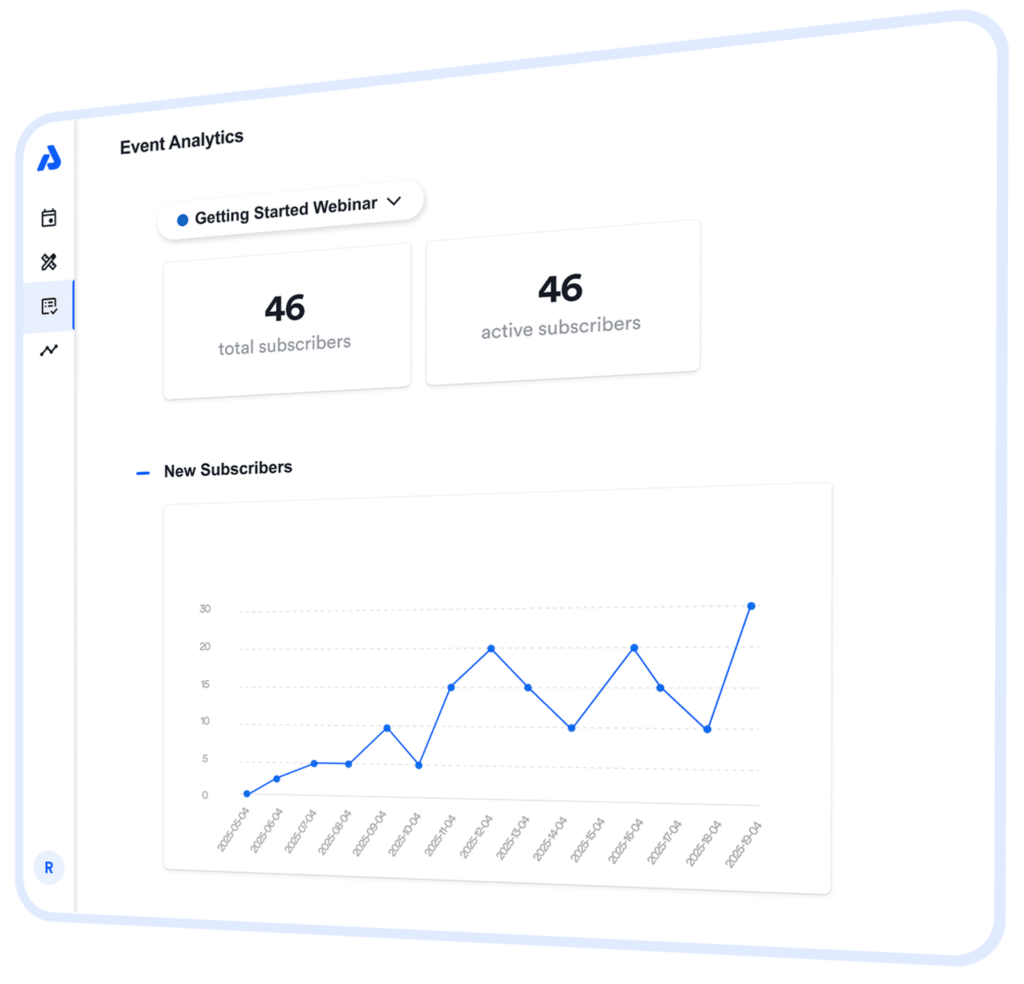
With AddEvent, every event and calendar you create includes Add to Calendar buttons, shareable links, and embeddable widgets. These can be placed across your website, email campaigns, and social channels. Built-in analytics allow you to track engagement across all of them, and understand how many times your event is added to a calendar.
Instead of wondering which campaign worked, you can point to real numbers that show what drove attendance.
Calendars Are Not Just Reminders
It is easy to think of calendars as a utility. Something that simply reminds people to show up.
In reality, calendars are new marketing opportunities.
They live where people already plan their lives. They are checked multiple times a day. And they create moments of attention that email and SMS often fail to capture.
When your event is on someone’s calendar, your brand shows up repeatedly and naturally. That visibility increases attendance, builds familiarity, and opens the door for deeper engagement.
Proving ROI by Cutting Costs, Not Just Boosting Attendance
One of the clearest ways to demonstrate ROI is by reducing spend without sacrificing results. Consider the example of a coach running a paid online mastermind with weekly live sessions.
To improve attendance, the coach sent SMS reminders before each call. Attendance improved, but the costs added up quickly.
At an average of $0.03 per text:
- 500 members cost $15 per session
- Weekly reminders cost $60 per month
- Annual spend reached $720 for a single mastermind group
As the coach launched additional masterminds and bonus sessions, SMS reminders became one of the largest recurring operational expenses.
Calendar reminders changed the model completely.
Instead of paying per message, the coach used AddEvent’s Add to Calendar links and buttons. Members added each mastermind session directly to their personal calendars, whether Google, Apple, or Outlook. From there, calendar platforms handled reminders automatically at no additional cost.
The results were clear and measurable:
- Attendance remained consistently high
- Reminder costs dropped to nearly zero
- Members preferred calendar notifications over SMS
That is ROI a team can see immediately, and scale without increasing costs.
Better Attendance Starts with Being on the Calendar
Getting someone to RSVP is only the first step. The real goal is making sure the event actually lands on their calendar.
Analytics consistently show that events added to personal calendars have higher attendance rates. A well-placed Add to Calendar button can be the difference between interest and action.
Placement matters. Buttons perform best when they appear:
- Near the top of your event landing page
- In confirmation and reminder emails
- Immediately after someone registers or RSVPs
- Within social posts that link back to your event page
With AddEvent analytics, you can track which placements lead to the most calendar adds and double down on what works.
Using Analytics to Improve, Not Just Report
Real-time analytics are not just for post-event reports. They are a feedback loop.
If you notice that email links outperform social links, you can adjust your promotion strategy mid-campaign. If certain widgets drive more engagement, you can feature them more prominently. If attendance dips for specific events, you can experiment with timing, reminders, or messaging.
This ability to adapt in real time is what separates good event programs from great ones.
Unlocking Upsell Opportunities Inside the Calendar
Calendar events are also not static. They can include links, details, and calls to action that go far beyond basic event info.
Yes, it is absolutely possible to include upsell opportunities inside a calendar event.
You can add links to:
- Purchase upgrades or premium access
- Reserve add-ons or bonus sessions
- Learn about upcoming or related events
This creates a seamless path to additional revenue while your audience is already engaged and paying attention.
Analytics help here too. By tracking clicks and engagement, you can see which offers resonate and which ones need refinement.
Subscription Calendars Multiply Your Impact
Subscription calendars take everything a step further.
Instead of asking attendees to add each event individually, you invite them to follow your calendar once. From then on, every new or updated event appears automatically in their personal calendar.
This approach delivers several ROI wins:
- No repeated reminder costs
- Consistent visibility for your brand
- More predictable attendance
- Easier promotion for recurring events
Analytics show you how people discover your subscription calendar, which channels drive subscribers, and how engagement grows over time.

Turning Data into Confidence
When leadership asks, “Was this event worth it?”, you should not have to scramble for answers.
That is why it is critical to add UTMs to any links included in the calendar description, as well as anywhere the event is shared. By tagging your links consistently, you can see exactly where registrations and attendance are coming from, whether it is email, SMS, social, landing pages, or partner promotions.
With real-time analytics, you can clearly show:
- Traffic sources and conversion paths, powered by UTM data
- Engagement across buttons, links, and widgets
- Attendance trends over time
- Cost savings compared to traditional reminder methods
This data turns subjective opinions into clear, defensible insights that leadership can trust.
Start Proving Event ROI with AddEvent
AddEvent makes it easy to create events, share them everywhere your audience already is, and track what actually drives results. From built-in analytics to powerful calendar-based engagement, it gives teams the tools they need to prove ROI and continuously improve.
Calendars are not just about remembering dates. They are about meeting your audience where they already are, reducing friction, and creating measurable impact.
Ready to see how your events are really performing? Get started with AddEvent and turn your event data into results your entire team can stand behind.
FAQs
How does AddEvent help measure event ROI?
AddEvent provides built-in analytics that show when people are interacting with your Add to Calendar buttons and links. By connecting attendance outcomes with these insights, teams can clearly demonstrate what worked, what did not, and where future efforts should be focused.
Can calendar events really replace paid reminders like SMS or email?
Yes. Calendar reminders are triggered automatically by the attendee’s own calendar system, which means there are no per-message costs and no scaling fees as your audience grows. Once an event is added, reminders will be triggered based on their calendar settings, leading to strong attendance without the ongoing expense of SMS campaigns.
Are calendar events only useful for reminders?
Not at all. Calendar events can include links, descriptions, and calls to action that drive deeper engagement. Many teams use them to promote upgrades, add-ons, future events, or related resources. With analytics in place, you can also track which links get the most attention and optimize your calendar content over time.
With AddEvent’s WYSIWYG (What You See Is What You Get) email editor, you can design beautiful, on-brand event emails without touching HTML. Whether you are sending automatic RSVP confirmations, automatic RSVP reminder emails, or manually emailing attendees with updates, the editor makes it easy to personalize and professionalize your communications.
This guide walks through how to design RSVP emails using AddEvent’s WYSIWYG editor, beginning with creating your RSVP event, customizing RSVP forms, managing attendees, and building effective email content.
1. Start by Creating an RSVP Event
Before you design email notifications, you need an event with RSVP enabled.
Create an RSVP event
Create an event in your AddEvent dashboard. Toggle RSVP on, which activates attendee tracking and email automation.
Customize your RSVP form
Your confirmation emails can use the data submitted through the RSVP form, so take time to design one that collects the information you need.
Using AddEvent’s customizable form builder, you can:
- Add new fields
- Require or hide specific questions
- Collect preferences
- Learn more about your attendees ahead of your event
A well-designed form ensures your emails and overall event can be more personal and relevant, for example using the attendee’s name or referencing their selected session.
2. Share Your RSVP Event
Once your event and RSVP form are ready, it is time to promote it.
AddEvent offers several ways to share your online RSVP event, including:
- A hosted event landing page with sharable URL
- Embeddable RSVP form widgets
- Shareable Add to Calendar links for emails
- Add to Calendar buttons for websites or landing pages
When attendees submit the RSVP form, they can automatically receive your confirmation email, which you can customize using the WYSIWYG editor.
3. Review and Manage Your Attendee Data
Before designing emails, it can also be helpful to review the attendee data you are collecting. This ensures that the fields you want to reference in your emails, such as name, company, or selected time slot, are present and mapped correctly.
In your event dashboard, you can:
- View attendee submissions
- Export data
- Track statuses (confirmed, declined, maybe)
- Add internal notes
Understanding your attendee information helps you personalize your messaging and streamline follow-ups.
4. Design Your RSVP Emails with AddEvent’s WYSIWYG Editor
Now it is time to design the emails your attendees will receive.
AddEvent’s WYSIWYG email editor allows you to create and edit:
- Automatic RSVP confirmation emails
- Automated event reminder emails
- Manuall emails for event changes or announcements
Key features of the WYSIWYG editor
- Brand customization
- Personalization tags
- Real-time preview and test tools
- Automatic event details
These details ensure accurate time zones, calendar links, and event updates populate for each attendee.
5. Attendee Email Notifications
AddEvent’s attendee email notifications allow you to automate the messages sent to guests who register for an RSVP event. These automated emails are configured within your custom RSVP Forms and include options for one confirmation email, two reminder emails, and one follow-up email. Each message can be individually enabled, disabled, and customized using the WYSIWYG or code editor.
Setting Up Automated Emails for Your RSVP Event
To configure or customize your automated attendee messages:
- From the dashboard, click the RSVP Forms tab.
- Select the RSVP form you want to edit, or create a new one. Note: The default Standard RSVP form is read-only and cannot be edited.
- Click the Email Notifications tab.
Here you will find all available automated email types associated with the form.
Customization Options for Each Email Type
Each automated email includes its own subject line, schedule, and message content. To customize an email:
- Click the plus icon on the right side of the email section to open the editor.
- Edit the subject line using the Email subject field.
- Customize the content using the visual WYSIWYG editor or switch to the code editor if you prefer working in HTML.
- To disable an email, toggle the turned on switch for that specific message.
Confirmation Email
The confirmation email is automatically sent when an attendee registers as going or interested. This is often the most important message because it provides immediate acknowledgment and essential event details.
Reminder Emails
You can activate up to two reminder emails for each RSVP form:
- One reminder scheduled 1 to 7 days before the event.
- A second reminder scheduled 1 to 23 hours before the event.
Both reminder emails can be fully edited using the WYSIWYG editor. These messages help reinforce attendance and ensure attendees remember the upcoming event.
Follow-up Email
The follow-up email is disabled by default. It allows you to reconnect with your attendees after the event.
- The included survey link is only a placeholder. You must insert your own feedback form and URL.
- The follow-up email can be scheduled between 1 hour and 3 days after the event.
Update Email
The update-email is a manual one-off email notification that you can choose to send out to your attendees. Most organizers use the update email to send any date or time changes, or provide additional information as the event gets closer.
This email template can be customized to match your branding under the RSVP Forms > Email notifications section. To update the content of the email, you can do so in the RSVP event when you go to send the email.
To send a manual push update email, you will need to do the following:
- From the AddEvent dashboard, click into the desired RSVP event
- Click See more under the RSVP attendees tile
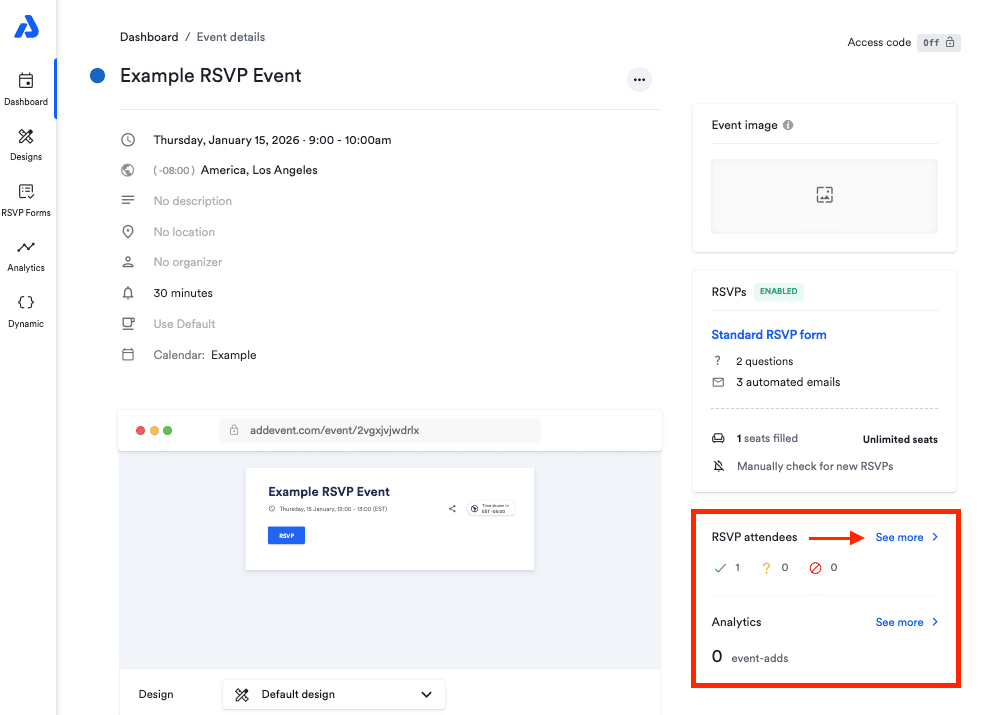
- Click into the second tile titled Email Attendees
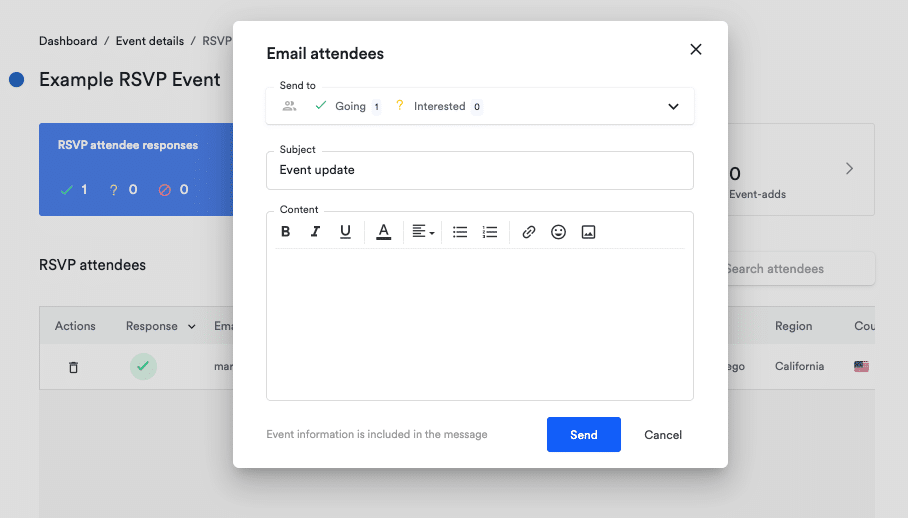
- Choose who you would like to send the email to based on RSVP: Going, Interested, or Not Going.
- Update the subject line of the email
- Add the information you would like to share with your attendees in the content box
- Hit Send
Customizing Email Content
Emails can be formatted using the visual editor or the code editor. You may also insert RSVP form data as tags within the content for more personalized messaging. Once a custom RSVP form is saved, the form and its email notifications can be applied to future events.
By default, automated emails are sent from events@addevent.com, but you can update both the sender name and email address so recipients receive messages from a sender they recognize. If you update the sender email, replies from attendees will be delivered to your chosen inbox.
These automated notifications apply only to the first instance of a recurring event. Reminder and follow-up timing can be adjusted based on your needs.
Best Practices for Effective RSVP Emails
To make the most of AddEvent’s WYSIWYG editor, keep these suggestions in mind.
Keep your message clear and concise
Attendees want quick confirmation and the essential details, such as time, location, and links.
Reinforce next steps
Include calls to action such as:
- Add to Calendar
- Join the livestream
- Update your RSVP
- View event page
Stay consistent with your branding
Use your brand colors, voice, and style across all event communications.
Personalize when possible
A simple greeting using the attendee’s name helps increase engagement.
Use the Test Email tool before sending
Confirm that images render correctly, buttons work, and spacing looks clean across devices.
Designing clear, professional, on-brand RSVP emails is simple with AddEvent’s tools. The WYSIWYG editor and automated attendee notifications help you create an engaging, seamless experience from the moment a guest submits an RSVP to the final follow-up after your event.
FAQs
How do I design RSVP confirmation emails in AddEvent?
You can design RSVP confirmation emails using AddEvent’s WYSIWYG editor. The editor lets you customize layout, branding, and content without writing HTML. Confirmation emails are sent automatically when an attendee submits the RSVP form.
Can I automate reminder and follow-up emails for RSVP events?
Yes. AddEvent allows you to automate one confirmation email, up to two reminder emails, and one follow-up email per RSVP form. Each email can be scheduled, enabled or disabled, and customized using the WYSIWYG editor.
Can I change the sender name and email address for RSVP emails?
Yes. While RSVP emails are sent from events@addevent.com by default, you can update both the sender name and sender email address. This helps ensure attendees recognize the sender and can reply directly to your inbox.