Solutions


Why Every Event Confirmation Page Needs an Add to Calendar Button add to calendar
Updated Feb 20th, 2026 by Camella Bridges
When someone registers for your event, books a demo, downloads gated content, or signs up for a webinar, there is a brief moment where their attention is at its peak.
They have just said yes.
That confirmation page is not just a receipt. It is your best opportunity to make sure that yes turns into attendance, engagement, and action.
Yet many confirmation pages end with a simple message: “You’re all set.” And nothing more.
If you are not including Add to Calendar on every confirmation page, you are leaving attendance and revenue to chance, which is a silly thing to do at such a crucial point in the attendee journey.
The Confirmation Page Is a Commitment Moment
The moment after someone submits a form is a psychological high point. They have taken action. They are motivated. They expect next steps.
So it makes sense that this is when they are most likely to save the date, block time on their calendar, plan to attend, and even share the event with others. The intent is fresh. The commitment is real.
If you wait to send an Add to Calendar link in a follow up email, you are already introducing friction. Emails get buried. Notifications are turned off. Inbox filters get in the way. Even highly engaged registrants can miss a follow up message.
Your confirmation page, on the other hand, is guaranteed visibility: every registrant sees it. That makes it one of the most valuable conversion assets in your entire funnel.
Add to Calendar Options Reduce No Shows and Increase Attendance Rates
No shows are rarely about lack of interest. They are about forgetfulness, scheduling conflicts, or lost details.
When someone adds your event directly to their calendar, they are not just saving information. They are blocking time. The event becomes part of their daily schedule, sitting alongside meetings, deadlines, and priorities.
Automatic reminders are triggered based on their calendar settings. Event details such as the title, time, location, and joining link remain easily accessible. Time zone information is handled correctly, which is especially critical for global audiences. This is more than a mere convenience: it’s behavioral reinforcement.
A hold on the calendar transforms someone’s intent into a scheduled commitment. For webinars and demos, this can significantly improve attendance rates. For in person events, it increases the likelihood that your event remains a priority when schedules get crowded as the day gets closer.
Your Calendar Becomes Your Owned Channel
When someone adds your event to their calendar, you gain something more powerful than an email open: you gain a presence inside their daily workflow.
Calendar events show up on desktop and mobile devices. They send automatic reminders. They remain visible days or even weeks in advance. Unlike social posts or marketing emails, they are not competing in a constantly refreshing feed or inbox.
If you think of email as owned media, your audience’s calendar is even more direct. It is where decisions about time actually happen. Securing a spot on that calendar means your event is not just remembered, it is scheduled.
Confirmation Pages Are Conversion Assets
Most teams treat confirmation pages as an afterthought, but they are actually high intent pages. Every visitor on that page has just completed a desired action, and now it’s time to solidify things in this final step.
Instead of stopping at “Thank you for registering,” consider what else can happen at this moment. You can encourage attendees to add the event to their calendar immediately. You can prompt them to share the event with colleagues. You can offer related resources, event materials, or even a follow up action such as booking a demo while they wait for the event date.
But an Add to Calendar button should be the primary action on that page. It reinforces the original conversion and increases the likelihood of the outcome you care about, whether that is attendance, engagement, or pipeline.
Best Practices for Adding Add to Calendar to Confirmation Pages
Adding an Add to Calendar button to your confirmation page is simple, but how you present it really matters.
First, make it prominent. This should not be a small text link buried at the bottom of the page. It should be a clear, visible button placed near the top of the confirmation content, ideally immediately after the success message.

Second, support all major calendar platforms. Your audience may use Google Calendar, Outlook, Apple Calendar, or another provider. Offering universal compatibility ensures that every registrant can add your event with one click.
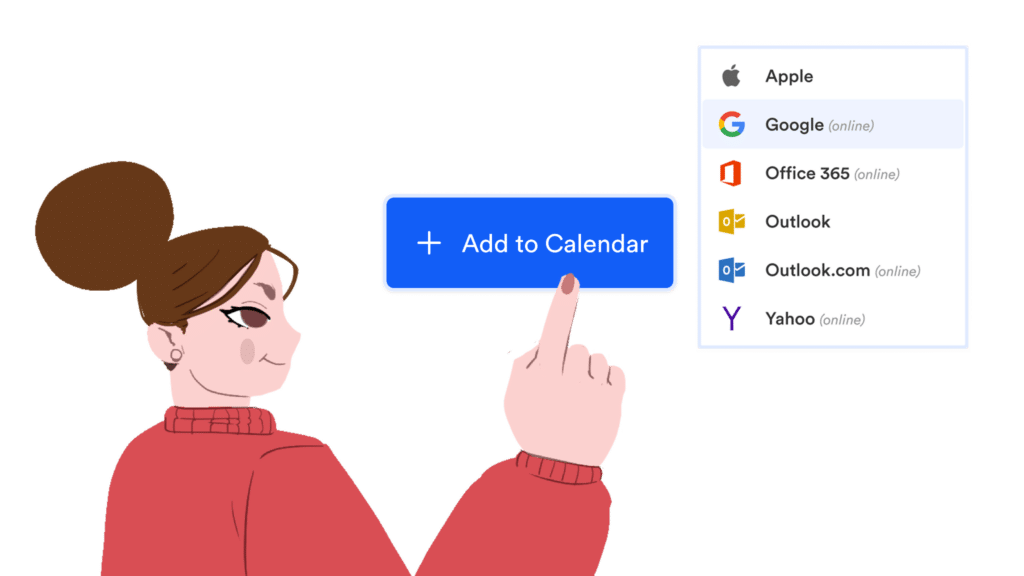
Third, include all relevant event details in the calendar entry. This means accurate date and time, correct time zone handling, location or virtual link, and any key instructions. The calendar event should be a complete reference point so attendees do not need to search their inbox for details later.
Finally, make it seamless. The Add to Calendar experience should require minimal effort, with one click to the correct platform, and the event is saved.
With AddEvent, you can generate customizable Add to Calendar buttons and links that work across major calendar providers, handle time zones automatically, and ensure your event details are consistent everywhere they appear.
The result is simple. Higher attendance. Fewer no shows. Stronger engagement.
If you are already investing in driving registrations, do not stop at the form submission. Make Add to Calendar a standard part of every confirmation page and turn intent into attendance. Sign up for a free account to get started today.
FAQs
Where should I place the Add to Calendar button on my confirmation page?
The Add to Calendar button should appear immediately after the confirmation or success message, where attention is highest. It should be visually prominent and clearly labeled so registrants understand it is the next step. Avoid burying it in small text or placing it below secondary content. The goal is to make saving the event effortless and obvious.
Does Add to Calendar work for both virtual and in person events?
Yes. Add to Calendar works for webinars, demos, virtual conferences, in person events, and even gated content releases. For virtual events, it ensures the joining link is saved directly in the calendar entry. For in person events, it reinforces the date, time, and location while triggering automatic reminders that help reduce no shows.
Do I still need reminder emails if attendees add the event to their calendar?
Yes. Calendar holds and reminder emails work best together. When someone adds an event to their calendar, they receive automatic reminders based on their calendar settings. Reminder emails provide additional touchpoints, updates, and engagement opportunities. Combining both ensures your event stays top of mind across multiple channels.